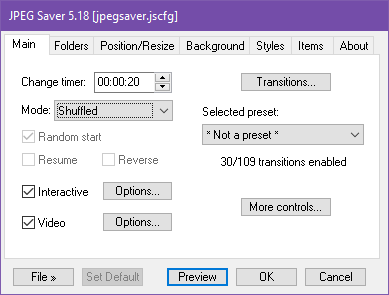
JPEG Saver screen saver
Some frequently asked questions about JPEG Saver:
What is JPEG Saver?
It's a Windows screen saver for displaying images with a load of options
that make it a bit more interesting.
Why did you call it JPEG Saver, when it doesn't save JPEGs?
I'm glad you asked that. There are no goats on this website either, so I
would like to take this opportunity to apologise to all those people who come
here searching for "goat jpegs".
Which types of image can it load?
Currently it supports JPEG, PNG, JPEG 2000 .jpc and .jp2 files and most types
of BMP file. If you want support for other formats, let me know and I'll see
what I can do.
Why doesn't JPEG Saver find images in subfolders?
By default, JPEG Saver just looks in the folder itself. To make it look in
subfolders, right-click the selected folder in the "Folders" tab and choose the
"Recursive" option. The icon will change from this:
to this:
and the folder will be scanned for
subfolders every time JPEG Saver starts up.
I've turned on "Interactive" - what are the controls?
I've put the list of keys and mouse controls in a table at the
bottom of this page.
How many images can it handle?
JPEG Saver has been successfully tested with over 68000 files in more than
700 directories, which used around 16Mb of memory. I really don't know
how many it can actually cope with - and I haven't imposed any limit in the
software.
Why did you write it?
Originally I wrote JPEG Saver because I couldn't find a screen saver on
the web that would display a bunch of JPEGs. After Windows XP came out
with the "My Pictures Slideshow" screen saver I thought JPEG Saver would
be obsolete. But "My Pictures Slideshow" has some limitations that I
didn't like, so back in 2003 I dug out the source code and started
work again.
What does JPEG Saver do that My Pictures Slideshow can't?
Well, the most obvious difference is that JPEG Saver supports multiple
directories. There are also options for setting where the image will
appear on the screen, and the order in which the images will be
displayed. And you can turn individual transitions on or off. And there
is more control over the resizing of images. And you can change the
background.
Version 3.0 added options for displaying some information about the images, and other stuff. Version 3.1 adds support for JPEG metadata - comments and EXIF data, which means it can auto-rotate digital camera images that have stored which way up they should go. Version 3.1.3 added support for IPTC data too.
Version 4.0 has a completely rewritten rendering engine that uses Direct3D, allowing for much smoother transitions and other options for the future.
Where can I get it?
Go to the downloads page where you can choose
the version you want.
Interactive controls
When the interactive option (called "Navigation" in earlier versions) is enabled, these controls become available from within the screen saver:
| Key | Mouse | Action | Notes |
|---|---|---|---|
| Left | Wheel up | Load previous image | |
| Right | Wheel down | Load next image | |
| Up Page Up |
Button 4 | Load image from previous folder | These are available when using a folder-based change mode, otherwise they act in the same as previous image / next image. |
| Down Page Down |
Button 5 | Load image from next folder | |
| Esc | Left, right, or middle button | Exit JPEG Saver | |
| Enter Return Space |
Skip to end of current transition | ||
| F10 | Save as desktop background | ||
| Ctrl+Delete | Move the current file to the Recycle bin | ||
| p | Pause and resume image changing | ||
| d | Dim screen gradually | These are available when dimming is enabled. | |
| D | Dim screen immediately | ||
| b | Return screen to full brightness | ||
| Numpad + | Increase gamma | These are available when gamma adjustment is enabled. | |
| Numpad - | Decrease gamma | ||
| Numpad 7 | Increase red gamma | ||
| Numpad 8 | Increase green gamma | ||
| Numpad 9 | Increase blue gamma | ||
| Numpad 1 | Decrease red gamma | ||
| Numpad 2 | Decrease green gamma | ||
| Numpad 3 | Decrease blue gamma | ||
| Numpad . | Reset gamma settings to previous values | ||
| Numpad * | Save gamma settings to config |